
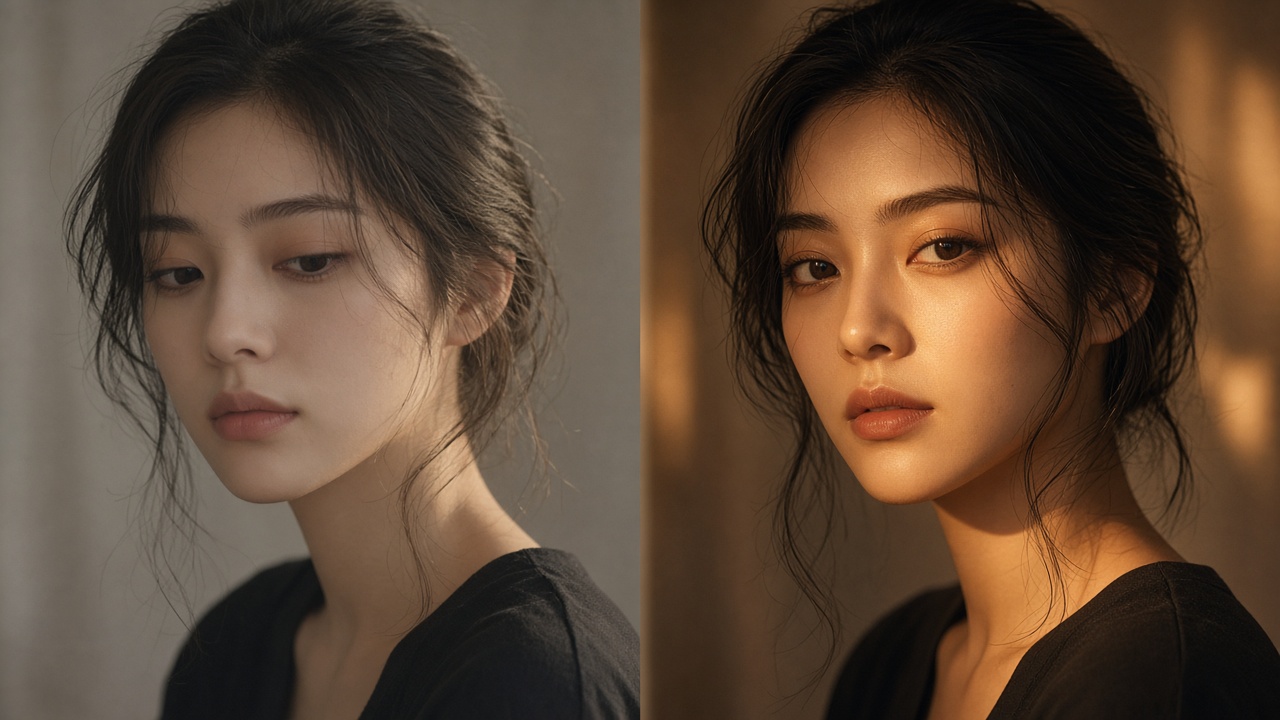
GPT Image 2.5 Flare
OpenAI describes Flare as a model for fast, high-quality everyday image generation. Check the current workspace to see whether this model is available to your account.
Check Available Models24言語に対応
GPT Image 2.5 Model Guide
Explore image-generation examples and prompt workflows for GPT Image 2.5. GPTImage2.hk is an independent website; the models and controls available to you are the ones currently shown in the workspace.

Explore examples of product visuals, posters, portraits, and lifestyle scenes. Results vary by prompt and workspace options.
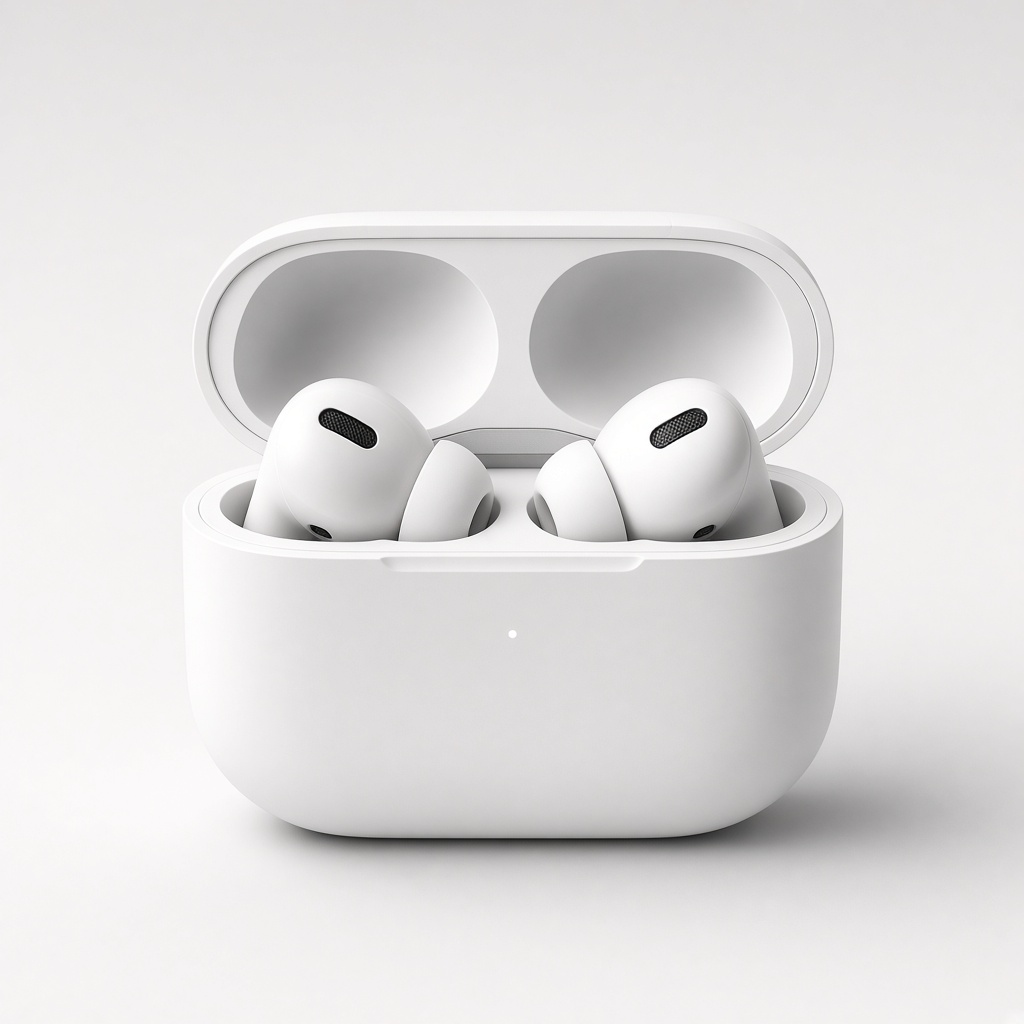
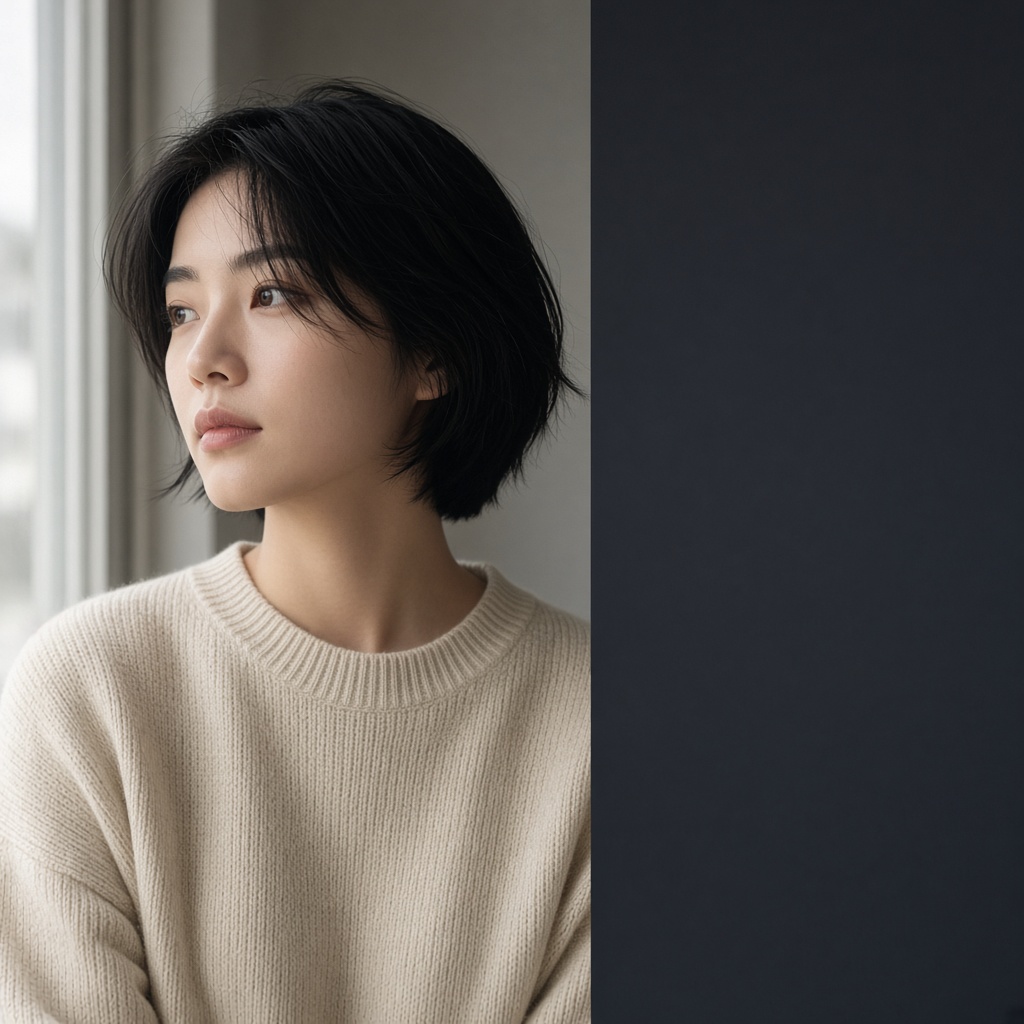


OpenAI's API catalog lists GPT Image 2.5 Flare and GPT Image 2.5 Sunburst as separate model IDs. Flare is described for fast, high-quality everyday image generation; Sunburst is described as OpenAI's most capable model for image generation and editing. The options available on GPTImage2.hk depend on the connected workspace.
OpenAI describes Flare as a model for fast, high-quality everyday image generation. Check the current workspace to see whether this model is available to your account.
Check Available Models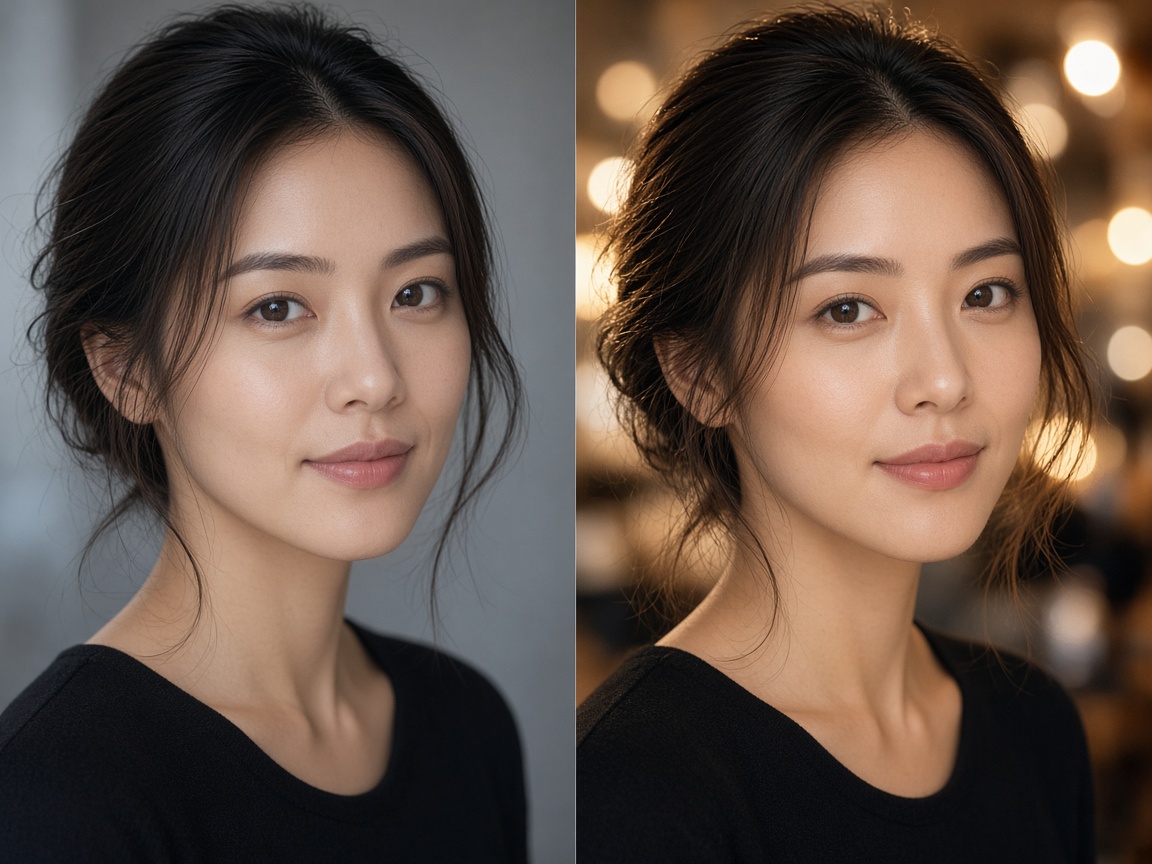
OpenAI describes Sunburst as its most capable model for image generation and editing. The actual options available through GPTImage2.hk must be confirmed in the live workspace.
Check Available Models Describe the subject, composition, style, and intended use in a text prompt. Review the generated image and refine your instructions when needed.
Open the Workspace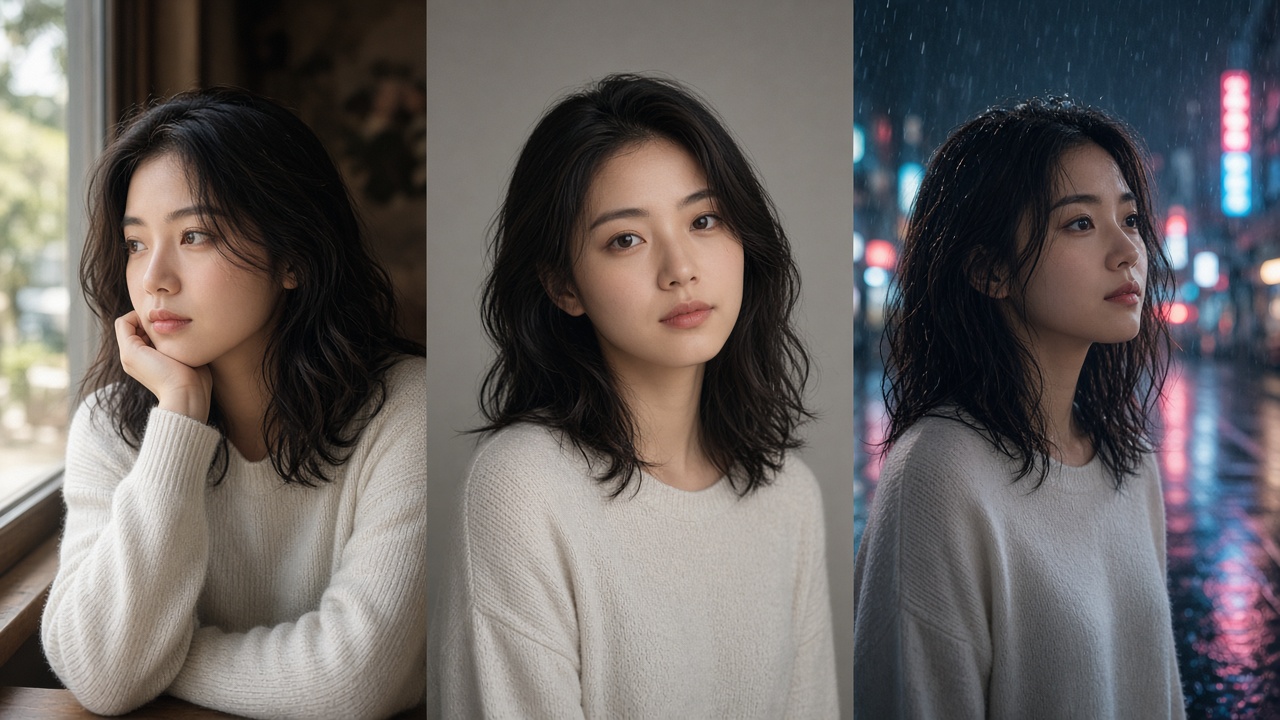
Where editing is enabled, use the available controls to make targeted changes to an existing image. Check the subject, text, and other important details after every edit.
Open the WorkspaceFor authoritative model identifiers and API capabilities, consult OpenAI's official model catalog and image-generation documentation. OpenAI Model Catalog · Image Generation Documentation
Start with a clear brief, inspect the available workspace options, and refine the result step by step.
Open GPTImage2.hk and review the model options and controls currently available to your account.
Describe the subject, setting, composition, style, and intended use. Specify exact on-image text when needed, and verify it in the generated result.
Review the result carefully. Where editing controls are available, use them to make targeted changes and recheck the details.
Explore potential applications across visual concepts, marketing materials, product imagery, and interface mockups. Check generated details before professional or commercial use.

Explore poster and advertising concepts with a clear subject, layout, color palette, and copy direction. Proof text before publishing.
Open the Workspace →
Where image editing is supported, start with a reference image and describe the changes you want. Check the subject and details after editing.
Open the Workspace →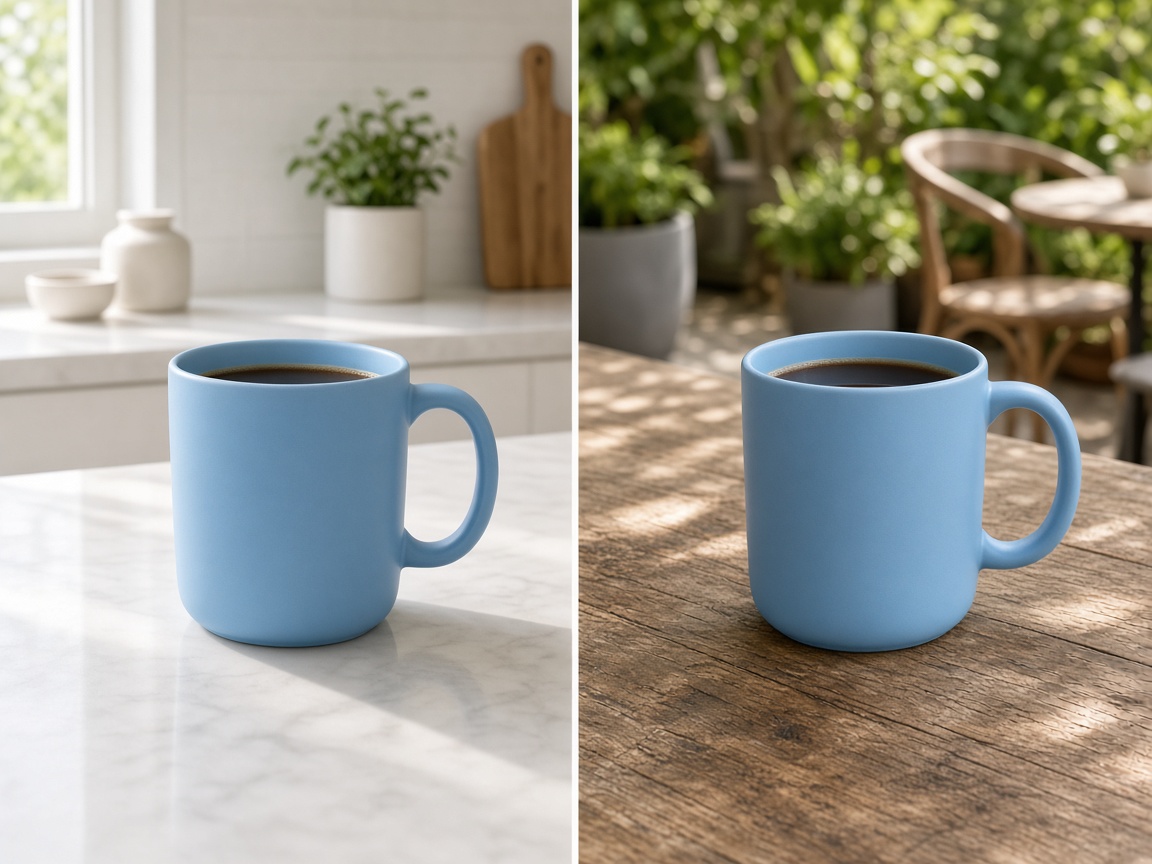
Explore product images in different settings. Compare the generated product shape, labeling, colors, and other details with the source materials.
Open the Workspace →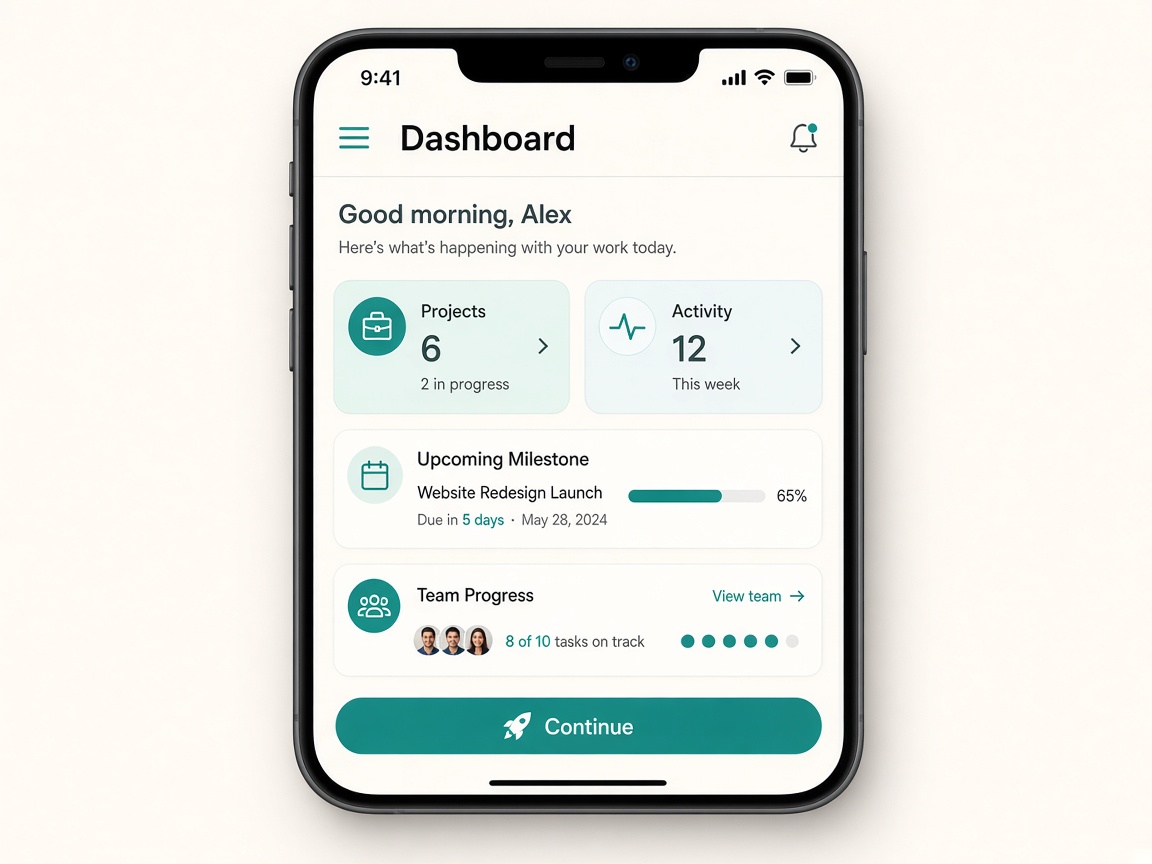
Create visual concepts for interface layouts, buttons, and labels. Treat the output as an early design reference and verify every visible label.
Open the Workspace →Describe where the subject, headline, supporting details, and call to action should appear.
When supported, focus an editing request on one change at a time and review the result before continuing.
Provide the exact text that should appear in the image, then proofread the rendered output manually.
Check subjects, logos, labels, and fine details before using the image in a professional context.
Answers about official model names, online access, available editing controls, and the GPTImage2.hk workspace.
OpenAI's API catalog lists GPT Image 2.5 Flare and GPT Image 2.5 Sunburst as separate model IDs. GPTImage2.hk is an independent website, and the models available through its workspace depend on its current configuration.
Do not assume that every official API model is enabled on this website. Open the workspace and check the model options currently available to your account.
OpenAI's model catalog lists GPT Image 2 and the GPT Image 2.5 variants separately. Select a model according to your task and the options available in your workspace. See the GPT Image 2 vs GPT Image 2.5 comparison guide for more context.
Use the workspace link on GPTImage2.hk to check the currently available image models and controls. Availability may depend on the connected workspace and your account.
OpenAI documents image-editing capabilities for its image models, but the controls exposed by GPTImage2.hk may vary. Check the actual workspace to see which editing options are available.
Open the workspace to see which model options and controls are currently available to your account.
Open the Workspace